
Quick reference guide for your membership mobile app
To help you to get the most out of your mobile membership app, we’ve put together this quick reference guide. It covers how to book into a session, see your past bookings and manage your membership payments and more.
Getting started
• Download the Clubworx mobile app from your app store.
• iOS/Apple: Download here
• Google play for Android: Download here
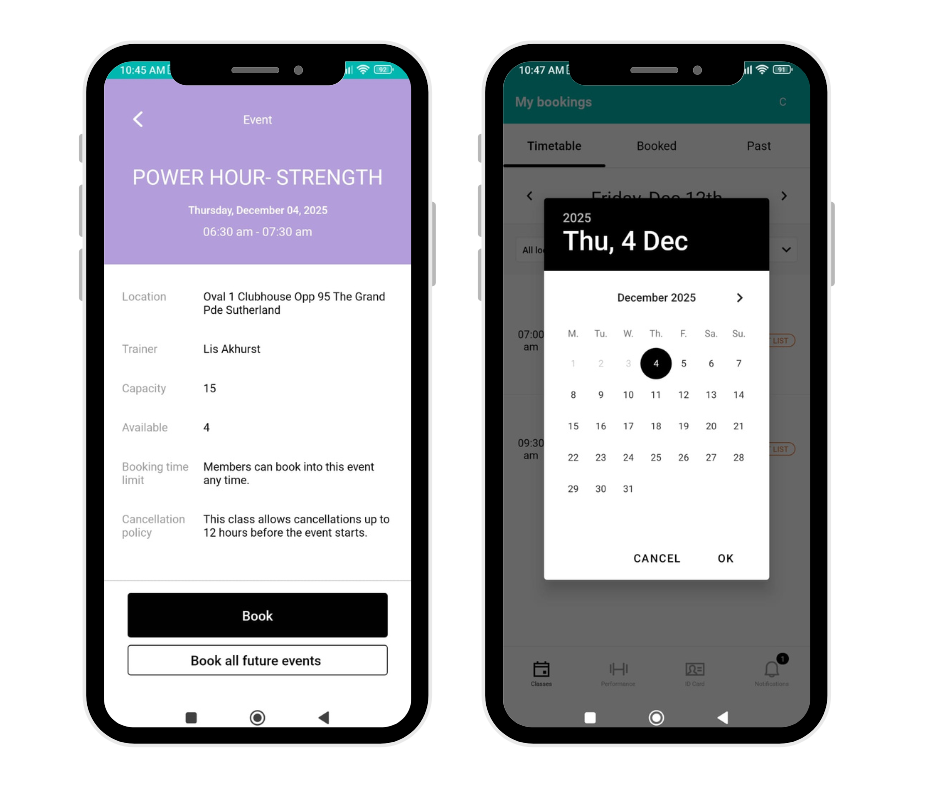
Key features of the top menu
TIMETABLE
o View sessions for the day.
o Click BOOK NOW to see: ⌚Duration; 📌 Location and 🔢 Spots left
o Option to book all future events in that time slot (as per your membership).
o If your membership doesn’t cover the session: You’ll see a prompt to purchase the correct membership option.
o You can choose the start date for the new membership.
✨ Tip: To jump ahead to a future date, click on the Day, Month Date in between the arrows and a monthly calendar will pop up.
BOOKED
o Shows all your upcoming sessions.
o To cancel: click the session → select Cancel.
o Important: For Diamond Days and Dreams, email admin@ditradventures.com.au to cancel.
PAST
o Displays all previous bookings.
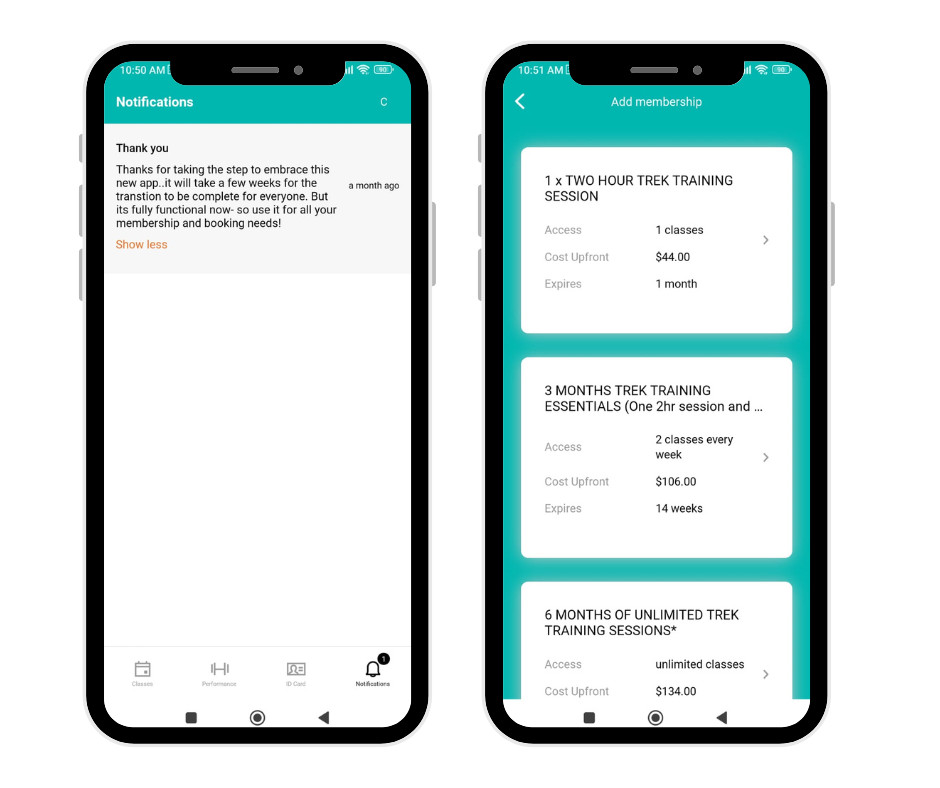
Key features of the footer menu
NOTIFICATIONS (far right)
o Used for updates and info.
o A number badge will appear for new messages.
o Please check regularly!
NOTE: Performance and ID Card – Not applicable.
___________________________
Key features of the profile (very top right)
PAYMENTS
o View membership purchases.
o Update payment methods.
MEMBERSHIPS
o See current membership details:
Expiry date
Sessions booked vs remaining
o Buy a new membership:
Choose start date
Option to use an alternative payment method.
RESET PASSWORD
o Click to reset your password.
MANAGE ACCOUNT
o Not applicable (for gyms/dojos with parent-child accounts).